Nintendo DS handhelds for Pokémon games and ROM hacks
Choose around two readable screens and usable touch controls. A handheld that runs GBA games does not automatically provide a comfortable DS setup.
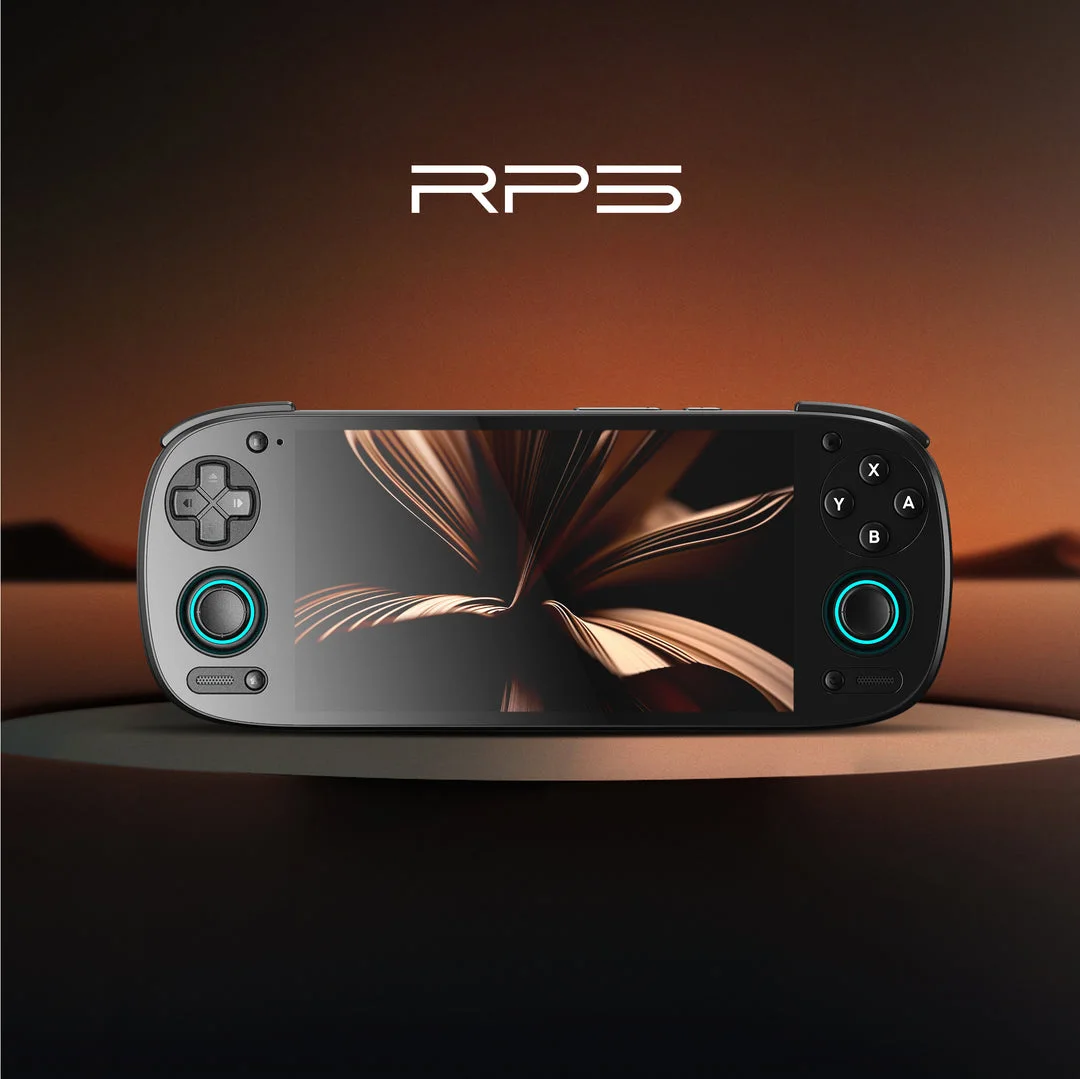
Retroid Pocket 5 (Android)
An Android handheld path for GBA and Nintendo DS Pokémon. Use separate emulator setups and check controls, screen layout and in-game saves.
Setup and device details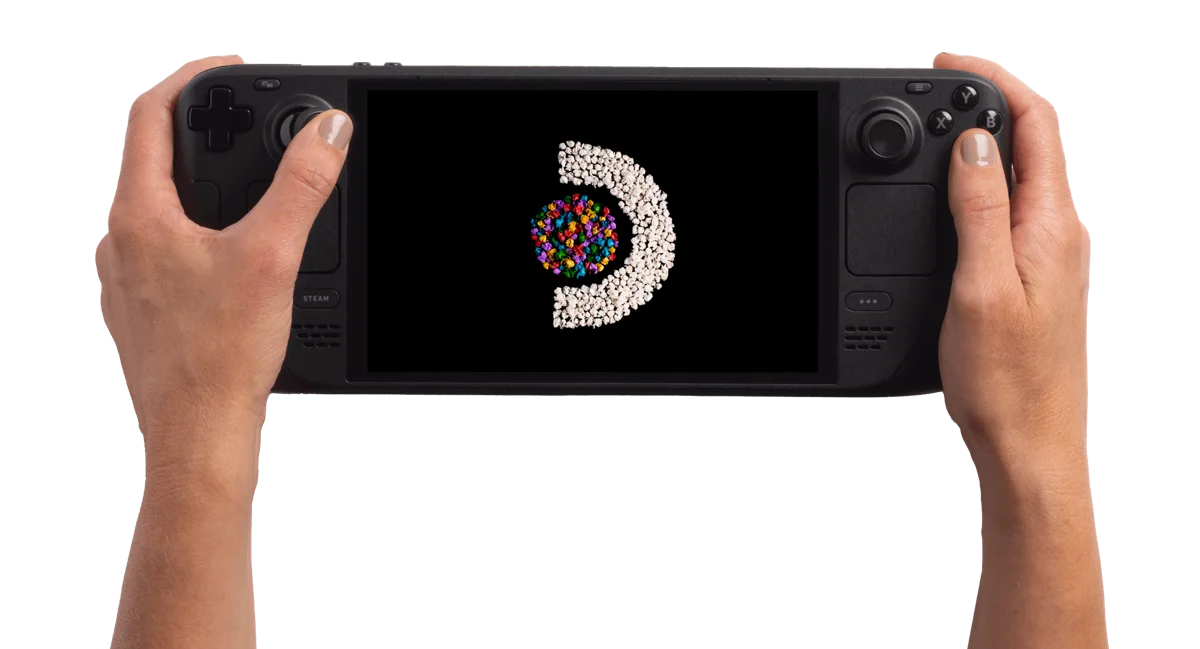
Steam Deck OLED 512GB
A SteamOS handheld PC. Start by checking your games' Deck compatibility and the input they need, then compare its size and screen with how you want to play.
Setup and device detailsRetroid Pocket 5 or Miyoo Mini Plus for Pokémon?
Choose the DS path around screens, input and progress
A useful DS shortlist starts with three tasks: read both screens, operate the lower screen and recover the intended save. Complete those checks with your actual game before treating a documented emulator path as a comfortable playing setup.
| Task | SteamOS standalone melonDS | melonDS Android port |
|---|---|---|
| Reach the settings | EmuDeck profile and emulator menus | The Android app's own configuration |
| Fit two screens | Compare documented layouts and swap controls | Use the port's layout editor and check touch targets |
| Locate progress | EmuDeck's separate cartridge-save and state locations | Configured directory and direct/frontend launch behavior |
| Consider multiplayer | Investigate the exact local workflow and game requirements separately | The linked port lists local multiplayer as missing |
This identifies software boundaries, not a speed ranking. Keep the same game while comparing layout and input so you can tell whether a change makes the lower-screen task easier.
melonDS Android: investigate save locations when frontend and direct launches differ
Patch Renegade Platinum with the correct Platinum revision and xdelta tool
Check the lower screen before committing to a playthrough
Use a disposable session to compare both-screen readability, a lower-screen menu click and normal movement after leaving cursor mode. Record emulator, layout and input method. These are suggested checks, not results for a particular device.
For KNULLI, the Drastic and Advanced-Drastic control guide separates screen swapping from touch clicks. For a touchscreen setup, still check small targets in the actual game rather than assuming that any tap will be comfortable.
Two screens change the handheld choice
- Layout: can you read the battle screen and bottom-screen menus together?
- Touch: can you reliably select moves, items and menu buttons?
- Screen swapping: can you reach the swap control without hiding important information?
- Controls: keep the D-pad, face buttons and shoulders accessible while using touch.
Try the parts of your actual game that use the lower screen. A boot screen alone is not a useful compatibility test.
Steam Deck: documented melonDS path
Use EmuDeck's standalone melonDS instructions for SteamOS. Its DS game folder is Emulation/roms/nds; saves and states have separate folders under Emulation/saves/melonds.
EmuDeck documents a hybrid screen layout by default and configurable vertical, horizontal and other layouts. Follow its screen-layout instructions and quit through the emulator to retain changes.
Open the EmuDeck melonDS setup and layout guide
Specific Pokémon hack performance, touch comfort and multiplayer behavior remain untested here. Check the exact emulator version and creator requirements.
Retroid Pocket 5: Android alternative
The Pocket 5 overview explains the separate melonDS Android port and save-directory checks. Use its layout editor to investigate how both screens fit; test lower-screen input with the game you want. This is a documented Android path, not a measured compatibility result.
Patch the DS game with the right tool
Renegade Platinum uses an xdelta patch in our catalog. Follow its creator's instructions and required Platinum base file. Our browser patcher supports IPS, UPS and BPS, so it cannot apply that xdelta patch.
Open the resulting DS game in a DS emulator. mGBA is the GBA path, not the emulator for a DS game. Keep an in-game save backup before changing game or emulator version.
Check the screen layout before a long playthrough
Start with both screens visible. In a Pokémon battle, read the move names and tap each lower-screen button without confirming a move. Then open the bag and party menus. If text is too small, try a larger main screen with a smaller secondary view; keep a reachable screen-swap control.
On Steam Deck, EmuDeck documents screen swapping through L4 or R4 with its controller profile. If that does nothing, check the selected Steam Input profile before remapping game buttons. On Android, use the port's layout editor and check touch targets after adjusting the layout. Deck shortcuts do not apply to Android.
Save your layout, quit normally and reopen the game to check that it persists. On EmuDeck's standalone melonDS, use File → Quit after changing settings; its documentation warns that other exit methods can discard those changes.
Move a Pokémon DS save between handhelds
Start with the save created by the game's own Save command. A save state captures emulator state and should not be treated as a portable cartridge save. This procedure is a cautious verification workflow, not a tested guarantee for every hack or emulator pair.
- Keep the game unchanged. Record the hack version and emulator on both devices. Check the creator's save rules; moving to another handheld and updating the hack are separate changes.
- Save and close on the source. Keep an untouched backup of the game save and any states before copying files.
- Find the destination's expected file. Back up existing destination progress, then create a temporary in-game save with the same game. Close the emulator and inspect the file it created: directory, filename, extension and size.
- Import a copy. Use the destination emulator's supported save-import procedure or expected cartridge-save location. Do not assume that changing an extension converts the save format. If the formats differ, stop and consult that emulator's documentation.
- Verify through Continue. Start without loading an old state. Check your trainer, party and location, save again, close normally and repeat the Continue check. Keep the original backup until you have confirmed the transferred progress.
Where to look for the save
Steam Deck, EmuDeck standalone melonDS: cartridge saves are under Emulation/saves/melonds/saves; states are under Emulation/saves/melonds/states. These paths are relative to the chosen EmuDeck installation. They are not instructions for a RetroArch core.
melonDS Android port: inspect the configured save directory and whether saves are placed beside the game. The developer documents a frontend-launch fallback to Android/data/me.magnum.melonds/files/saves when the game has not been scanned and the normal save location cannot be used. Scan the game in the app and establish its save location before relying on a launcher.
When Continue or touch controls do not work
- No Continue after copying: verify the destination-created filename, actual save directory and imported format. Keep the backup; do not start overwriting files at random.
- Older progress keeps appearing: launch without restoring a state, then inspect the game's Continue entry. Keep states separate while checking an imported save.
- Touch selects the wrong button: show both screens, check which view is the lower screen and repeat the touch test after changing the layout.
- Game opens in a different emulator: check the launcher configuration. A standalone emulator and a RetroArch core can use different directories and settings.
The linked Android port lists local multiplayer as missing. Do not choose that setup on the assumption that local trading works. Neither documented screen settings nor a successful save import establishes game performance or wireless compatibility.
Nintendo DS Pokémon ROM hacks to explore
- Pokémon Renegade Platinum — Pokémon Platinum. The developer supplies separate patches for version 1 and version 1.1 of the base game: RenegadePlatinum3541 and RenegadePlatinum4997.. Check the profile's patch and save requirements.
These are catalog examples, not a tested compatibility list. Heart & Soul is a GBA demake; its Johto setting does not make it a DS game.
Looking for GBA instead?
Use a short DS acceptance session
After preparing the correct game output, use a disposable or backed-up session to check ordinary play rather than only a title screen. Pick a familiar menu with readable labels and harmless selections.
- Read dialogue and small summary numbers on the main screen.
- Open the lower-screen menu and select a predictable option. Check which visible copy receives input if the layout duplicates a screen.
- Swap screens and return, then confirm ordinary movement still works.
- Save in-game, quit through the documented route and reopen through the same launcher.
- Inspect Continue and the retained layout. Only then compare a second launch route or import old progress.
If taps choose the wrong item, first compare layout and touch behavior. If settings revert after quitting, inspect the exit and launch route. If Continue differs between launchers, inspect game identity and save storage. These observations point to different guides:
- Steam Deck screen layout and persistence
- Android direct/frontend save comparison
- Renegade Platinum main and optional patch stages
A copied file that loads once is not the end of migration. Save again and repeat Continue before retiring the source. A successful layout check also does not establish wireless trading or every hack's game mechanics.
DS handheld questions
Can I use the GBA emulator for a Johto DS game?
Use the platform recorded on the game profile. A Johto setting appears in projects for different hardware; an actual DS output needs a DS emulator.
Should I enlarge one screen immediately?
Begin with both visible and identify which tasks use each. Test the lower-screen menus and a reachable swap control before committing to a single enlarged view.
Does an Android save path apply to Steam Deck?
Use the path for the installed emulator. SteamOS standalone melonDS and the Android port have separate storage and launch instructions.
Keep a handheld session record
A short record helps you compare one change with the previous attempt. For DS, describe which screen and input you used, and whether you launched directly or through a frontend. Leave anything you have not checked blank: the export marks it as “Not recorded”.
Open the local session notebook
These notes stay in this page’s browser memory. They are not uploaded or saved automatically; reloading clears them. Download the text before leaving if you want to keep it. This tool does not read game files, saves or device settings.
Preview the text export
Nintendo DS handheld session notes

User-entered observations; not a compatibility verdict or verified diagnosis.


Device and operating system:
Not recorded

Game and build / edition:
Not recorded

Emulator and core / version:
Not recorded

Launch route:
Not recorded

Task and expected observation:
Not recorded

One change tried:
Not recorded

Observed result:
Not recorded

Next question or action:
Not recorded
Sources and scope
Software documentation checked 5 Oct 2026. Game profiles retain their own source dates. Use legally obtained files; Pocket Deal Radar provides no ROMs, BIOS files or prepatched games.
Based on the creator's documentation, checked 5 Oct 2026. Not hands-on tested unless a section says 'We played it'.
How we check